How Do I Use the Pastely AI Virtual Try-On Editor?
Step-by-Step Guide Using the Pastely Editor is designed to be intuitive and highly visual. Whether you are styling yourself or experimenting with our models, here is exactly how to create your perfect look: • Step 1: Choose Your Base Model Start by setting up your canvas in the main workspace. You can easily upload a clear, well-lit photo of yourself to serve as the base. Alternatively, you can select from our diverse range of palettes to start styling immediately.
• Step 2: Browse the Wardrobe Catalog Look to the left side of your screen to find the Search Catalog. You can browse through various clothing items, including tops, bottoms, shoes, and accessories, which you can add to your digital closet.
• Step 3: Build Your "Current Palette" Click on the items you want, in the wardrobe on the right, to mix and match. These selections will appear in your Current Palette tab. If you have specific pieces in mind, this is also where you can upload images of your own clothes to test them out.

• Step 4: Apply the clothes Once your palette is ready, simply click the "Apply to Palette ->" button located at the bottom right of the catalog panel. Our state-of-the-art AI will instantly process your request, mapping the textures, lighting, and fit of the garments perfectly onto your chosen model.
• Step 5: Review Your Variations Pastely doesn't just give you one option, it applies the palette on all of your pictures displayed in the center of your screen. This allows you to see how the outfit looks in slightly different poses or environmental contexts. If you make a mistake, simply use the undo/redo arrows at the bottom of the image viewer.
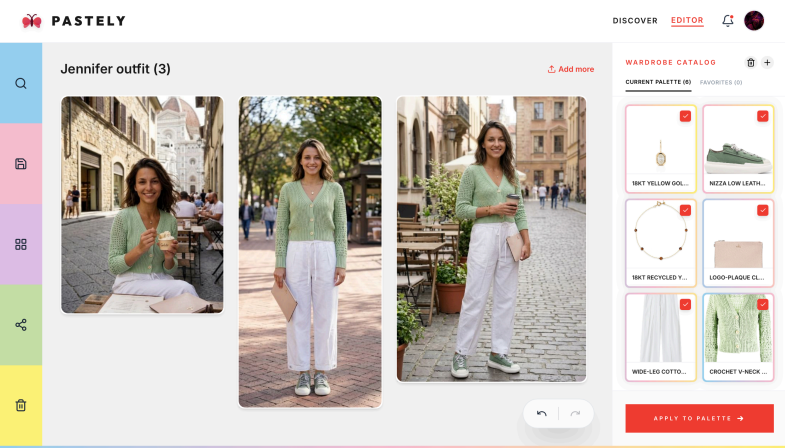
• Step 6: Save and Share Your Look Once you've crafted the perfect outfit, use the toolbar on the far left side of the screen. You can click the save icon to keep it in your personal gallery, or use the share icon to send your AI-generated look to friends or post it on social media.